
Android apps were built for phones, but plenty of them breathe easier on a desktop. If you’ve ever squinted at tiny timelines, fumbled with fat-finger taps, or watched your battery melt like ice cream on a hot sidewalk, you already get it. That’s why more people look up apps for PC when they want the same Android tools with a keyboard and a real screen. The catch is simple: you can’t install most Android apps directly on Windows or macOS, so you use an Android emulator, and LD Player is a popular pick for that job. Here’s everything you must know about those Android apps and how to download them for PC.
Messaging and Community Tools Get a Productivity Boost
Typing long replies on a phone can feel like writing a novel with oven mitts. On PC, messaging apps become work-friendly. You can respond faster, search chats without rage-scrolling, and copy links or snippets without the dreaded mis-tap. Community apps also benefit from desktop habits.
Editing and Creative Apps Stop Feeling Cramped
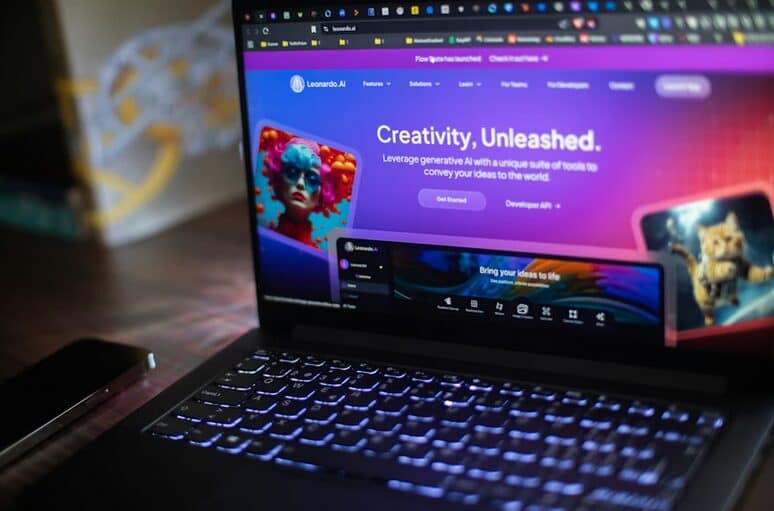
Video editors and photo tools often feel like trying to paint a mural through a keyhole on a phone. On a PC, your canvas opens up, and your hands stop doing gymnastics. Dragging clips on a timeline with a mouse is calmer, and keyboard shortcuts turn slow chores into quick moves. Even simple tasks like trimming, masking, or syncing audio become less “oops, wrong tap” and more “done, next.” The same goes for design apps used for quick mockups, thumbnails, or social posts. A bigger screen lets you actually see spacing errors before they embarrass you. File management is also less of a circus on a desktop.
Mobile Games and Real-Time Apps Run Cleaner on a Desktop
Some games are simply more playable with a keyboard and mouse. Inputs become precise, and you stop missing a skill because your finger landed one millimetre off. On a PC, performance can be steadier too, especially if your phone is older or heat-prone. It’s the difference between a sprint and running in wet socks. Real-time apps like streaming companions, chat overlays, or multi-account tools also feel less fragile on desktop. You can multitask without the app constantly getting shoved into the background. If you’ve ever had a match, a call, and a message all collide at once, you know the pain. Desktop breathing room helps.
Utility Apps Feel Sharper With Desktop Power
Think note-taking, reading, language tools, and file utilities. On a PC, you can type clean notes, paste screenshots, and organise pages without fighting a small screen. Reading apps also improve because you can scan faster and keep the context visible. It’s like switching from a peephole to a window.
How to Run Android Apps on PC With LD Player
First, install LD Player on your Windows PC or Mac, then open it like any other program. It creates a virtual Android device, so apps behave like they would on a phone. Next, sign in with a Google account inside the emulator so you can access the Play Store. Think of it as setting up a new Android phone, minus the glass slab.
After that, search the Play Store in LD Player and install the app you want. Launch it from the emulator’s home screen, then adjust controls if it’s a game or a touch-heavy tool. If you have an APK file, LD Player also lets you install it through its built-in install option. Once it’s running, pin it to your routine and treat it like a desktop tool that just happens to speak Android.